
How to Fix the iPhone Green Flashing Screen Problem in 2024
Introduction
Green flashes on an iPhone screen can be unsettling. They disrupt user experience and could signal underlying device issues. Tackling these problems is vital for keeping your iPhone in top condition.
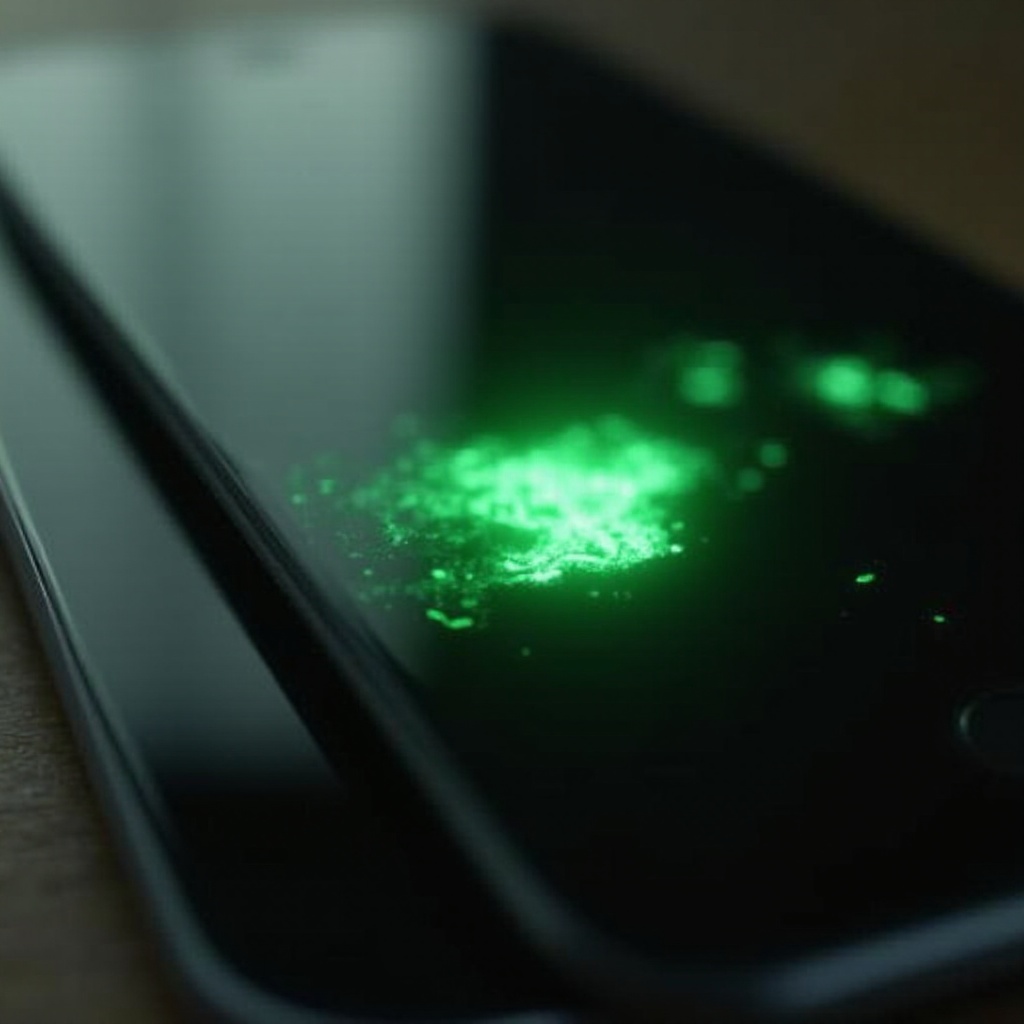
Understanding the iPhone Green Flashes
Recognizing what triggers these green flashes is the initial step towards resolving the issue. It can be caused by various software and hardware problems.
Common Symptoms
Green flashes often appear sporadically during app transitions or device wake-ups. Additional signs may include screen flickering or freezing.
Primary Causes
Factors like outdated software, incompatible apps, and hardware malfunctions can cause these flashes. Identifying the root cause helps in selecting an effective solution.
Software Solutions to Fix the Green Flash
More often than not, the green flash issue can be remedied with simple software solutions. Implementing these strategies might solve your problem.
Updating iOS
Ensure that your iPhone runs the latest iOS version. Regular updates from Apple provide necessary fixes for known bugs and improvements. To update, head to Settings > General > Software Update.
Restarting and Resetting Settings
A restart can eliminate many temporary software glitches. If the problem persists, go to Settings > General > Reset > Reset All Settings to restore system defaults without deleting personal data.
Removing Conflicting Apps
Misbehaving third-party applications can disrupt screen functionality. If green flashes occur after installing a new app, try uninstalling it to resolve the issue.
Hardware Solutions for Green Flashing Screen
When software solutions are insufficient, the issue could be hardware-related. Examine your device thoroughly for physical problems.
Visual Inspection and Connection Issues
Check your iPhone for obvious signs of damage or loose connections. Inspect the device exterior, ports, and buttons for anything that seems out of place.
Damage Check and Screen Replacement
If your device recently experienced physical trauma, consult a professional. They can assess whether the screen needs replacing.
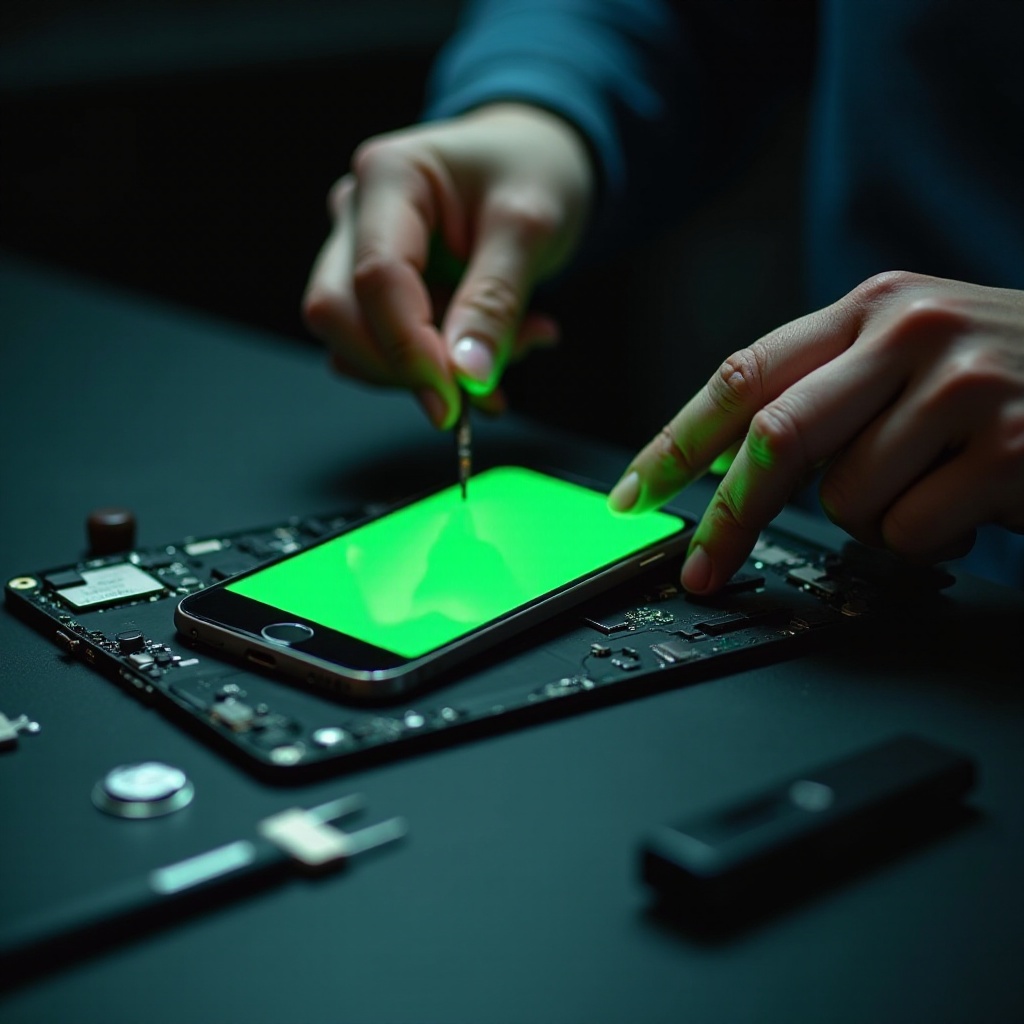
When to Seek Professional Help
Identifying when to consult a professional can save both time and resources. Here are some indications that expert assistance is necessary.
Identifying Severe Problems
Persistent flashing, unresponsive touch controls, or complete screen failure signify more serious issues. These require professional diagnosis and repair.
Choosing Reliable Repair Services
Select a service with certified credentials in Apple product repairs. When not using an Apple store, review their reputation and customer feedback to ensure reliability.
Preventative Measures for Avoiding Green Flashes in the Future
Preventative steps can reduce the likelihood of experiencing another green flash on your screen. Consider these practices to better protect your iPhone.
Regular Software Updates
Enable automatic updates to keep your iOS current. Apple’s updates often tackle the root of many persistent software faults.
Protective Gear and Handling
Invest in a durable case and screen protector to minimize physical damage. Proper care ensures longevity and makes future issues less likely.
Conclusion
Green flashing screens can be managed with a thoughtful, deliberate approach. Often, a combination of software tweaks and better prevention practices ensures smooth functionality. Regular care and prompt attention to problems further enhance your iPhone’s lifespan.
Frequently Asked Questions
Why does my iPhone screen flash green randomly?
Green flashes can stem from software bugs, conflicting apps, or hardware issues. Identifying the cause involves updating software and removing problematic apps.
Can I fix the green screen issue at home?
Yes, many issues can resolve with iOS updates or setting resets. However, if these don’t work, checking for physical damage or seeking professional help is advisable.
Is the green flash covered under warranty?
If due to a manufacturing defect and under warranty, Apple typically covers it. Accidental damage isn’t covered unless AppleCare+ is purchased.