
How to Change Email Settings on iPhone: A Comprehensive Guide
Managing email settings on an iPhone can significantly enhance your digital communication experience. Whether adjusting server details or customizing notifications, the iPhone’s robust features make email management smoother and more efficient. By learning how to modify these settings effectively, you ensure seamless and secure correspondence.
Introduction
The iPhone, with its intuitive interface, offers extensive options to manage email settings, boosting productivity and security. Navigating these settings allows you to tailor your email experience to your needs, whether you are facing sync issues, upgrading security configurations, or optimizing notifications.
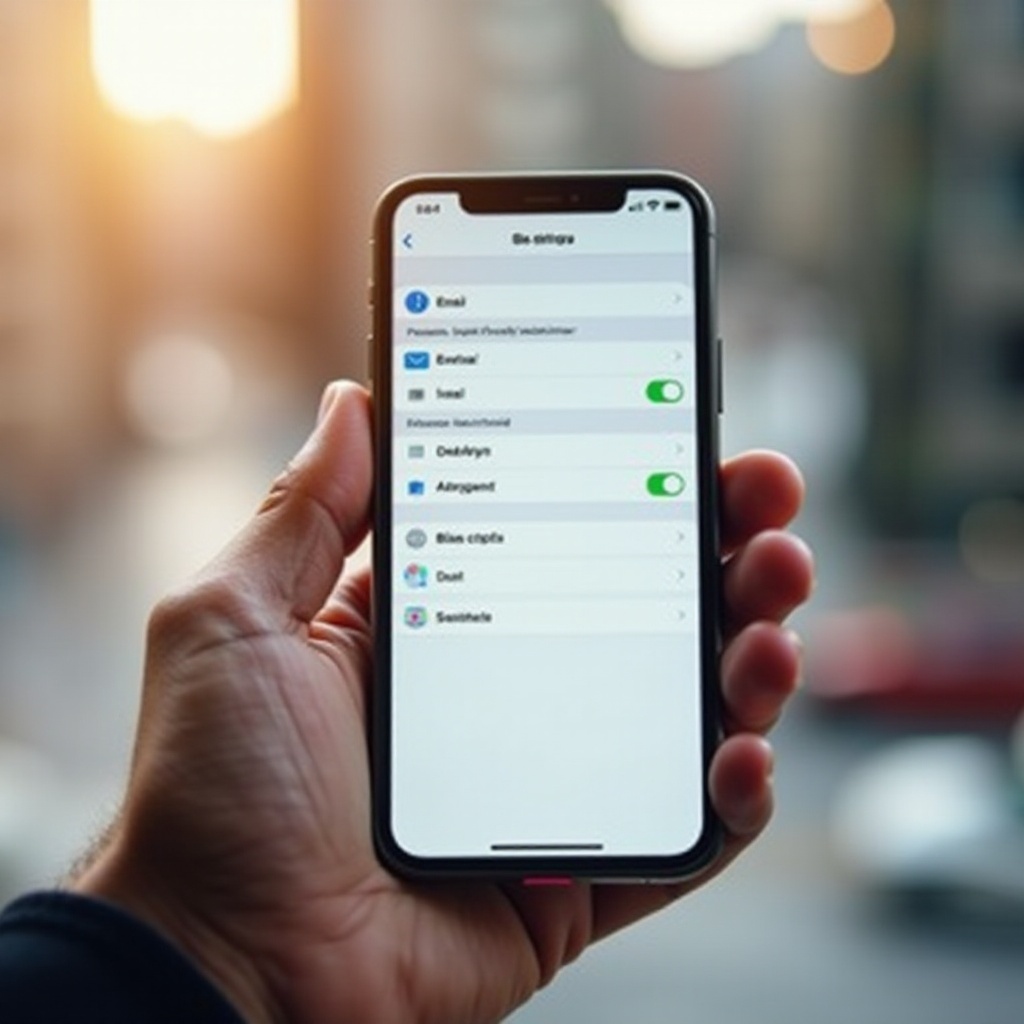
Reasons to Change Email Settings on Your iPhone
There are several important reasons to modify your email settings:
- Improve Functionality: Regular updates can resolve sync issues and enhance email load times, ensuring smooth communication.
- Enhance Security: Security updates can protect your account by enabling protocols like SSL or two-factor authentication.
- Personalize Experience: Customizing notifications and alert tones can simplify managing multiple accounts and improve overall experience.
Understanding these reasons highlights the significance of mastering email settings adjustment on your iPhone, paving the way for optimal email management.
Accessing the Email Settings on iPhone
To begin adjusting your email settings, locate them on your iPhone. Here’s how:
- Navigating to the Settings Menu:
1. Open the ‘Settings’ app on your iPhone.
2. Scroll down and tap on ‘Mail’.
3. Select ‘Accounts’ to view linked email accounts. - Locating Your Email Account:
1. Tap on the email account you wish to modify.
2. From here, access various settings to adjust as per your needs.
Mastering these steps prepares you to fine-tune your email settings and configure server details accurately.
Configuring Incoming and Outgoing Mail Servers
Configuring mail servers ensures that your email functions efficiently.
- Understanding IMAP vs. POP3:
1. ‘IMAP’ syncs emails across devices while storing them on a server, allowing multi-device access.
2. ‘POP3’ downloads emails to a single device, removing them from the server afterwards. - Setting Up Incoming Server Details:
1. Tap on ‘Incoming Mail Server’ and input the necessary server hostname.
2. Ensure correctness of your username and password. - Setting Up Outgoing Server Details:
1. Tap on ‘SMTP’ under the Outgoing Mail Server section.
2. Enter the appropriate server hostname and authentication details.
Proper configuration of these settings guarantees smooth email delivery and receipt, enabling further customization of sync settings for efficiency.
Adjusting Email Sync and Fetch Settings
Optimizing sync and fetch settings impacts how often you receive updates, enhancing workflow.
- Choosing the Right Fetch Schedule:
1. Go to ‘Settings’, select ‘Mail’, and choose ‘Accounts’.
2. Tap on ‘Fetch New Data’ to set between ‘Push’, ‘Fetch’, or ‘Manual’. - Managing Email Storage:
Regularly delete unwanted emails to maintain optimal storage space, which boosts device performance.
With these settings optimized, increased attention can then be given to ensuring account security enhancements.
Enhancing Security for Your Email Account
Securing your email account is crucial in today’s digital age. Here are steps to enhance security:
- Enabling SSL for Enhanced Security:
1. Within your email account settings, ensure ‘SSL’ is enabled for both incoming and outgoing servers for encrypted transmission. - Setting Up Two-Factor Authentication:
Activate two-factor authentication via your email provider’s settings for an extra layer of security.
These security steps protect emails against unauthorized access, allowing for personalized notification settings to be next addressed.
Customizing Email Notifications and Alerts
Custom notifications simplify managing multiple accounts effectively.
- Managing Notification Preferences:
Customize your notification settings within each account to determine how and when you receive alerts. - Customizing Alert Sounds for Different Accounts:
Assign different alert tones to each email account via ‘Sounds & Haptics’ in settings.
These customizations refine notification experiences, facilitating an easier transition to managing multiple accounts.
Tips for Managing Multiple Email Accounts on iPhone
Handling multiple email accounts can be straightforward:
- Adding Multiple Accounts:
Use ‘Add Account’ under Mail settings to include new email accounts with ease. - Switching Between Email Accounts:
Quickly switch between accounts by tapping on the ‘Mailboxes’ button in Mail app. - Setting a Default Email Account:
Select a default email account in ‘Settings’ under ‘Mail’ for streamlined email sending.
Effective account management minimizes clutter, naturally leading to resolving common problems.
Troubleshooting Common Email Issues
Resolving common email issues saves both time and frustration.
- Email Not Syncing:
1. Ensure internet connection is stable.
2. Re-enter email password if prompted. - Incorrect Password or Server Issues:
Verify server settings and authentication details if emails fail to send or receive. - Problems Sending or Receiving Emails:
Reset network settings if standard troubleshooting doesn’t solve the issue.
Addressing these common problems ensures efficient email functionality, culminating in the final overview.
Conclusion
Mastering how to adjust email settings on your iPhone is key to maintaining seamless, secure communication. By refining these configurations, you’re customizing your experience so emails work efficiently and securely for you.
Frequently Asked Questions
How do I reset my email settings on my iPhone?
Reset email settings by deleting and re-adding the account in the Mail settings.
What are the most common email problems on iPhones?
Common issues include sync failures and incorrect server settings.
How can I increase the security of my email on iPhone?
Enable SSL encryption and two-factor authentication to boost security.