
How to Add Extensions on iPhone: A Complete Guide
Introduction
Enhancing your iPhone’s functionality has never been easier with the use of extensions. These powerful tools can improve productivity, provide enhanced browsing experiences, and offer personalized functionalities tailored to your needs. Understanding how to integrate these extensions efficiently can transform your smartphone usage. In this guide, we will explore how to maximize your iPhone’s potential using extensions.

Understanding iPhone Extensions
Before diving into the installation process, it’s important to grasp what extensions are and how they differ from their desktop counterparts. iPhone extensions are specialized applications designed to enrich the functionality of mobile browsers like Safari, different from desktop extensions by being optimized for mobile constraints while maintaining high performance. These extensions can perform a variety of functions, such as ad-blocking, page translation, and password management, allowing users to customize their device’s capabilities to better align with their personal usage needs.
Prerequisites for Installing Extensions
To ensure that the installation and use of extensions on your iPhone go smoothly, a few prerequisites must be met. First, verify that your device is running on iOS 15 or later, as these versions have significantly improved extension support. Secondly, recognize that most extensions operate primarily within Safari, though some have compatibility with other browsers like Chrome. By meeting these prerequisites, users ensure seamless integration of extensions, enhancing the mobile experience.
Installing Extensions on Safari
Adding extensions to Safari can enhance your browsing experience tremendously. Here’s how to install them effectively:
1. Open the App Store and type ‘Safari extensions’ in the search bar to explore available options.
2. Select an extension that suits your needs and tap on it to review further details.
3. Tap ‘Get’ to download and install the extension onto your device.
4. Enable the extension by navigating to ‘Settings,’ selecting ‘Safari,’ then ‘Extensions,’ and switching on your desired extension.
Following these steps will activate the extension for use, enhancing the functionalities of Safari during your browsing sessions.

Popular Extensions for iPhone Users
Choosing the right extensions can greatly enhance your iPhone’s usability. Consider these popular options:
– AdGuard: Effectively blocks intrusive ads, establishing a clutter-free browsing environment.
– Grammarly: Improves writing by offering grammar suggestions and spell checks.
– Pocket: Conveniently saves articles and other content for offline consumption, ensuring you have access to information whenever needed.
– 1Password: Securely manages passwords, granting easy access and safeguarding your online accounts.
These extensions not only extend your device’s functionalities but also cater to specific user requirements, enhancing both productivity and security in unique ways.
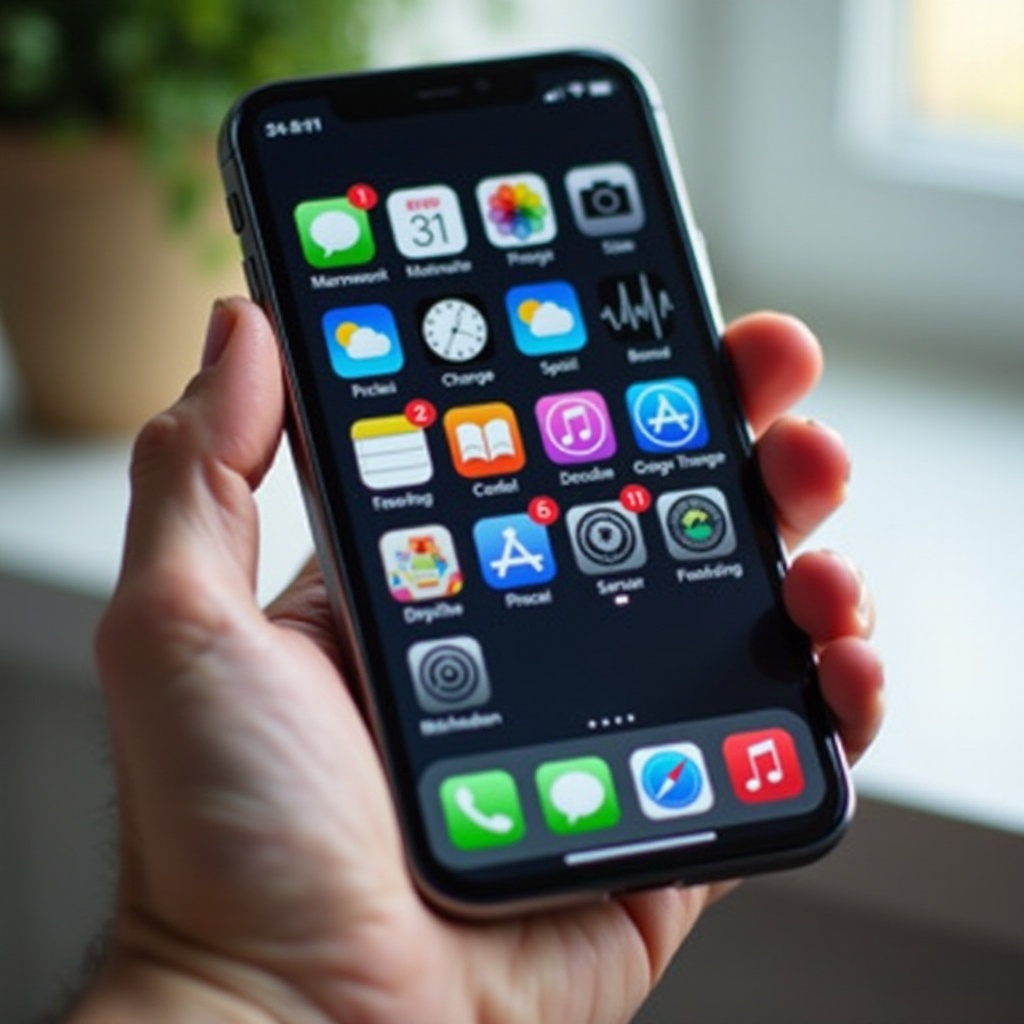
Managing and Customizing Extensions
To ensure you get the most out of your extensions, effective management and customization are key.
– Access the settings panel by navigating to ‘Settings,’ then ‘Safari,’ and tapping on ‘Extensions’ to inspect installed extensions.
– Tailor your experience by tapping on each extension to customize settings according to your personal preferences.
– Prioritize extensions you frequently use; disable the ones you don’t need to streamline performance and save resources.
By properly managing your extensions, you can adapt your iPhone to better suit your individual habits and requirements.
Troubleshooting Extension Issues
At times, extensions might encounter bugs or stop functioning correctly. Here’s how to troubleshoot these issues:
– Check for updates by heading to the App Store and ensuring all extensions are current.
– If an extension is malfunctioning, try uninstalling and reinstalling it to resolve the problem.
– Verify compatibility with your current iOS version to ensure there are no inherent conflicts.
These troubleshooting steps can address common problems, ensuring your extensions remain functional and effective.
Future of iPhone Extensions
As technology progresses, the realm of iPhone extensions continues to expand with innovative opportunities. Developers are consistently crafting solutions aimed at improved security, productivity, and customization, enhancing the iPhone user experience. With the integration of artificial intelligence, we are seeing the emergence of even smarter applications capable of anticipating user needs. Anticipating the continuous updates to iOS and leveraging active communities, the future promises even more advanced and robust extension functionalities.
Conclusion
Integrating extensions into your iPhone routine can substantially enrich the way you interact with your device. Whether you need to block annoying ads, manage passwords more securely, or save articles for offline reading, extensions provide a path to personalizing and optimizing your smartphone experience. With a simplified installation process and the ability to manage and troubleshoot as needed, embracing extensions empowers you to transform your iPhone into a more personalized, efficient tool.
Frequently Asked Questions
How can I check if my iPhone supports extensions?
Ensure your iPhone is updated to iOS 15 or later. This version facilitates the use of extensions across various apps and browsers, including Safari.
Are extensions safe to use on my iPhone?
Most extensions on the App Store undergo rigorous checks for safety. However, always download extensions from reputable developers and read reviews to ensure safety.
How do I update or uninstall an extension?
You can update extensions through the App Store. To uninstall, go to ‘Settings,’ then ‘Safari,’ tap ‘Extensions,’ select the extension, and choose ‘Uninstall.’