
How to Show Location on Photos iPhone: A Comprehensive Guide
Introduction
Geotagging photos enhances your iPhone photography by adding a location layer to each image, creating not just a visual memory but a geographic one. This guide will walk you through how to activate and utilize this feature effectively while ensuring your privacy remains intact throughout the process.

Understanding Location Services on iPhone
Your iPhone’s Location Services play a crucial role in geotagging photos. By using GPS, Wi-Fi hotspots, and Bluetooth, your device can determine your exact location. This technology benefits not only your Maps app but also enhances your Photos app. Allowing the camera to access location data means each photo is instantly tagged with its geographical context, enriching your photo library and tracking your adventures.
How to Enable Location Services for Photos on iPhone
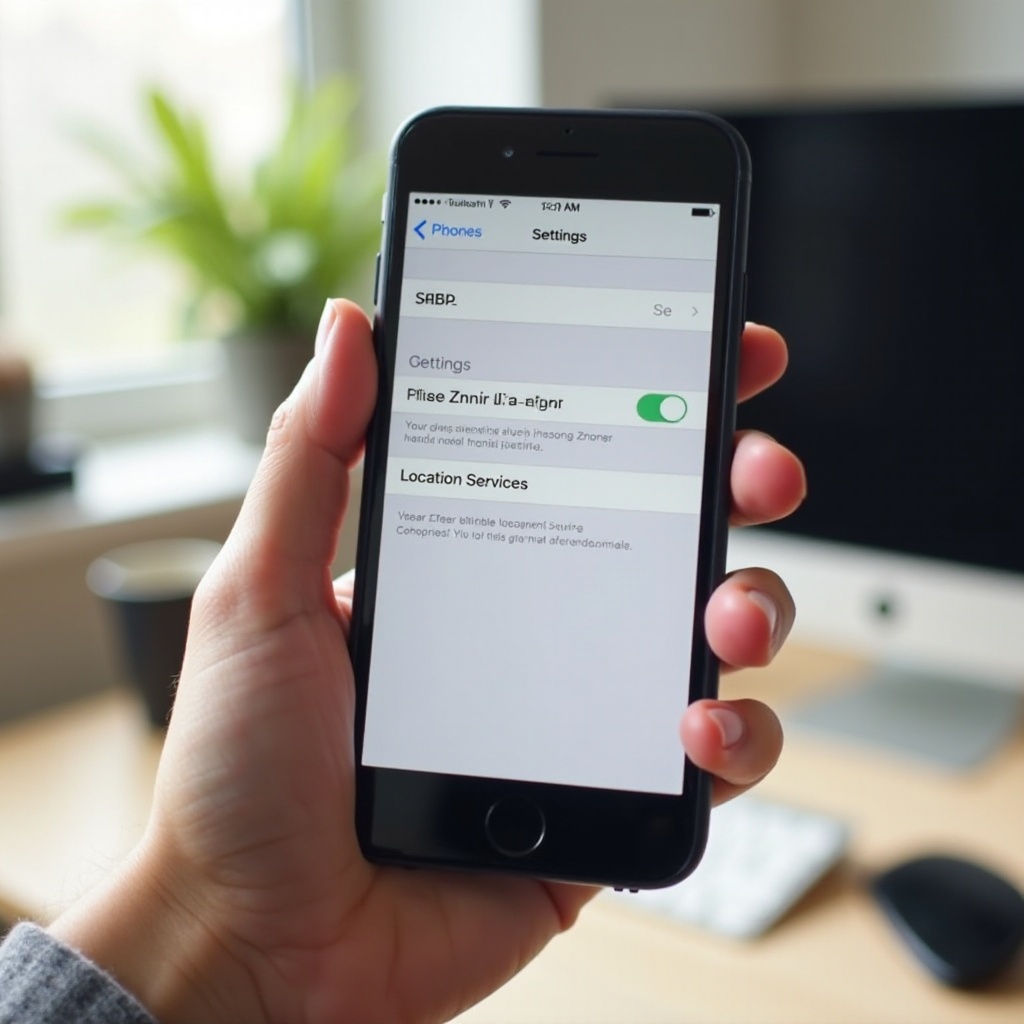
To enable location services for your photos, follow these simple steps:
- Open the ‘Settings’ on your iPhone.
- Navigate to ‘Privacy’ and select ‘Location Services.
- Turn on ‘Location Services’ if it’s not already enabled.
- Scroll down to the ‘Camera’ app and select it.
- Choose ‘While Using the App’ to give the Camera access to your location only when you’re taking photos.
With these settings, your iPhone automatically adds location data to each new photo, a seamless process once set up.
Accessing and Viewing Location Data in Photos App
After ensuring that Location Services are active, accessing this rich metadata is the next step:
- Open your ‘Photos’ app and select a photo.
- Swipe up or tap the ‘(i)’ icon for details.
- A map will display the exact location where the photo was taken along with other metadata.
For those seeking more robust features, third-party apps like Google Photos can further enhance your geotagging experience with additional functionalities, extending your control and creativity.
Privacy and Security Considerations
While geotagging greatly enriches your photo collection, it’s important to handle your location data carefully:
- Regularly review which applications have location access by visiting ‘Settings > Privacy > Location Services’ to ensure only necessary apps have access.
- Be cautious when sharing geotagged photos on social platforms by removing location data to prevent unwanted exposure.
By managing your settings wisely, you maximize the utility of geotagging while maintaining control over your privacy.
Creative Uses for Geotagged Photos
Geotagged photos open up creative avenues, transforming your image gallery into a digital travelogue:
- Create interactive photo journals complete with maps charting your journeys, offering an immersive storytelling experience.
- Enhance personal albums with detailed geographic context, adding a new dimension to your memories.
Harnessing these benefits, your photo gallery becomes not only a repository of images but a dynamic archive of cherished experiences.
Troubleshooting Common Issues
Should you encounter issues with geotagging:
- Verify that Location Services are properly enabled and the Camera app has the correct permissions.
- Restart your iPhone to refresh its systems.
- For further assistance, Apple’s support resources are available to help troubleshoot persistent issues.
Promptly resolving such issues ensures a smooth geotagging experience, letting you focus on capturing memories.
Conclusion
Activating geotagging on your iPhone leads to richer storytelling through photos. Following these simple steps and tips can enhance your collection with geographical context while ensuring your privacy and security are safeguarded. Dive into this augmented photographic experience with the confidence of a well-informed user.
Frequently Asked Questions
How do I remove location data from my photos?
Open Photos app, select a photo, swipe up, tap the share button, choose ‘Options’ at the top, and toggle ‘Location’ off.
Can I add location data to photos that weren’t geotagged initially?
Yes, use apps like Photo Investigator to manually add or edit location data for existing photos.
Is it safe to share geotagged photos on social media?
It’s safe with proper privacy management. Consider removing geo-tags before sharing to protect your location details.