
How to Delete a Profile on Nintendo Switch
Introduction
Removing an unnecessary profile on your Nintendo Switch can enhance your gaming experience. Whether you’re freeing up space or organizing your console, knowing how to delete a profile is essential. This guide offers a clear pathway to manage your profiles smoothly, helping you avoid any typical issues that may arise.
Understanding Nintendo Switch Profiles
Profiles on Nintendo Switch store your unique gaming data, settings, and preferences. Each profile captures crucial data such as save data, play history, and personalized settings. Understanding the importance of these details allows you to manage profiles effectively, ensuring nobody messes with your gaming progress unexpectedly.
Having multiple profiles offers personalized gaming experiences. If you share your console, each user can maintain individual game progress and settings. Being informed of how profiles control these aspects can help you keep everything organized.
Reasons for Deleting a Profile
Tidying up your Nintendo Switch sometimes requires removing outdated or unused profiles. You may need to remove an idle profile to free up storage, address privacy concerns, or ensure smoother navigation across games and apps. Efficient profile management maintains order and access speed.
Cleaning inactive profiles can eliminate clutter and prevent confusion. Doing so not only organizes your console better but also acts as a precautionary security step.
Preparing to Delete a Profile
Before you press delete, take precautionary steps to safeguard important data:
1. Back Up Save Data: Use the Nintendo Switch Online cloud service for critical backups.
2. Review Linked Accounts: Ensure no necessary accounts or purchases are tied to the profile.
3. Transfer Important Information: Shift valuable content to another user profile.
4. Confirm Profile Selection: Double-check before proceeding to avoid unintended deletion.
Proper preparation mitigates the risk of losing valuable gaming progress and account data.
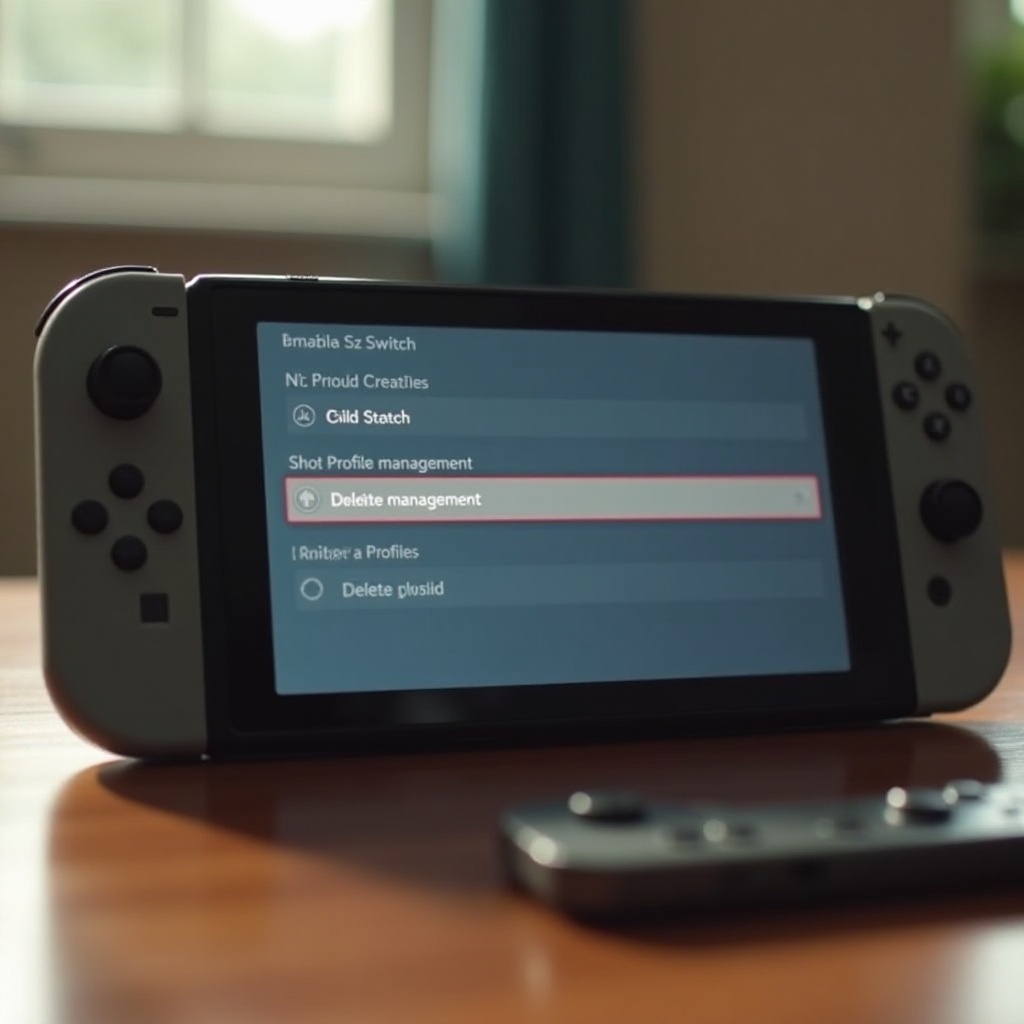
Step-by-Step Guide to Deleting a Profile
Here’s how to delete a profile on your Nintendo Switch:
1. Access System Settings: From the Home Menu, select the ‘System Settings’ icon.
2. Navigate to Users: Scroll down to find and select ‘Users.
3. Select the Profile to Delete: Identify the specific profile for removal.
4. Delete the Profile: Click on ‘Delete User’ and confirm your choice. Follow the prompts to ensure completion.
5. Final Confirmation: Complete the prompts for full deletion.
Removing the profile enhances user interface simplicity and opens up valuable storage space.
Troubleshooting Common Issues
Encountering issues during deletion? Try these tips:
– Error Messages: Ensure a stable internet connection and update your system’s software.
– Profile Undeletable: Check whether parental controls are blocking the action.
– Data Not Deleted: Verify in user settings whether the profile remains.
Being aware of these potential hurdles allows for prompt solutions, securing smooth management of your console.
Best Practices for Profile Management
Effectively managing profiles involves:
– Regularly Reviewing Profiles: Periodically clean up to remove inactive profiles.
– Keeping Data Backed Up: Regular cloud backups ensure no valuable data is lost.
– Utilizing Parental Controls: Control who can create or delete profiles.
– Organizing by User Preferences: Customize settings for optimal user experience.
Implementing these practices streamlines your console management, optimizing gaming satisfaction for all users.
Conclusion
Handling Nintendo Switch profiles needn’t be cumbersome. By following these guidelines, you can efficiently manage and delete profiles while safeguarding your data. A well-maintained console ensures a more enjoyable gaming journey.
Frequently Asked Questions
Will deleting a profile remove all associated game data?
Yes, deleting a profile removes all linked data unless previously backed up to a cloud service.
Can a deleted profile be recovered on Nintendo Switch?
Once a profile is deleted, it cannot be recovered. Important data should be backed up beforehand.
What should I do if I encounter an error during the deletion process?
Check for system updates and ensure no parental controls are active. If issues persist, contact Nintendo support.